Revision Control Documents
Revision Control is the management of changes to documents. It automates scheduled reviews on documents and handles applying reviews outcomes on the documents by either applying changes or document obsoletion.
Maintaining the latest documents and related updates while keeping all previous revisions of the document is a necessity for any company seeking compliance to Quality System Standards. To accommodate this, ETQ Reliance allows adding revision-controlled features for document types that need to be tracked to ensure information is up-to-date and accurate.
The features of Revision Controlled documents are:
- Review Record: A record that is created for completed documents upon scheduled reviews. This record is used to record the outcomes of the document review.
- Change Request: A record that is created to request applying changes on the document. The change request must be approved before it is processed to create a new revision of the document in its initial phase, to allow applying the changes.
- Obsolete Request: A record that is created to request obsoleting the document. The obsolete request must be approved before it is processed to send the document to the archive application as obsoleted.
- Revision History Tab: A system tab that contains sections to record information about the process of revising a document.
- Archive Application: An application that corresponds to the active application. It stores old document revisions and obsoleted documents along with their responses.
- Restoring Document: A process that allows restoring obsoleted documents from the archive application to the active application.
After reviewing, correct information is kept as is, while incorrect or obsolete information needs to be either change-requested or obsoleted. The process is illustrated below:
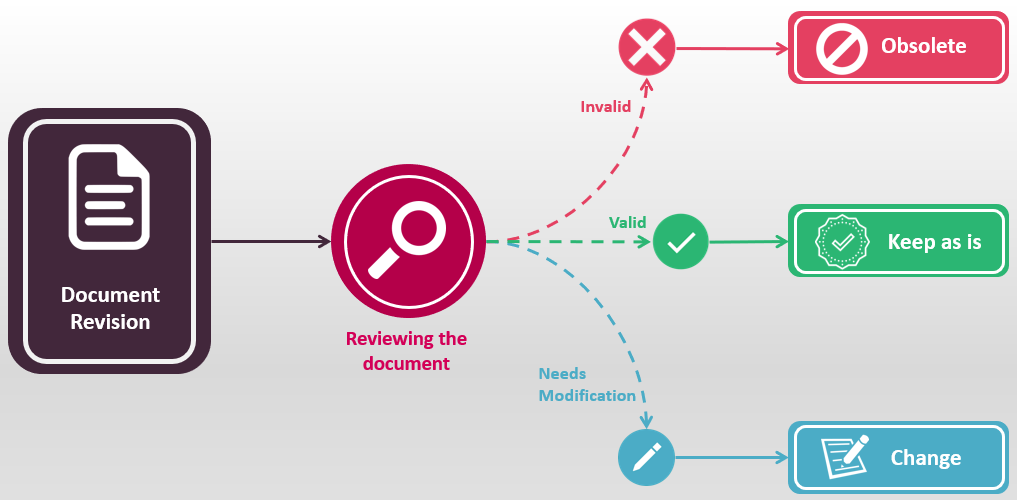
Revision Control Features
Document Number vs Revision Number
Each created document has a unique document number, all revisions that spin from the same document will have the same number but with a different revision number.
A revision number is used to identify the changes applied to documents. It can be a number or letter code.
The revision number increases, automatically or manually, each time a new revision is created from the previous version. The Revision Number is configured and customized from the workflow setting.
Revision History Tab
The sections of this tab are used to track the history of the document. This history includes the links to the Review Records, Change Requests, and the Obsolete Requests created from the document and the reason field that clarifies the reason for the current revision creation.
Reason for New/Revised Document Section:
This section is used for two purposes:
- When the document is new, you can write the Reason for creating the document.
- When the document is initiated due to a change request, a link will be pasted showing the name of the user who requested the change along with other details. In this case, the Reason is inherited from the Change Request.
When the document is change-requested, there will be two documents:
- The completed one. In this document, the Reason for New/Revised Document section will display a link to the Change Request document.
Clicking this link opens the Change Request document. The Change Request link does not include a revision number. It displays the name of the initiator, the date when the change was requested and the status of the change request.
- The new pending document which is created because of the change request. This document be in the Draft phase and will display a new revision number (revision of original + 1).
The Reason for New/Revised Document section on the new revision of the document will include a text area field that includes the reason for the change (inherited from the Change Request).
Obsolete Request Section:
When the document is obsoleted, a link to the obsolete document will be displayed in this section. Clicking the link opens the Obsolete Request document. The link displays the obsolete request number and its status.
Revision History Section:
The Revision History table will be calculated for display at every phase in the workflow process and when the document is archived. Each time the document is revised, a row will be added to the table to record:
- The new Revision levels.
- The Reason for revising a document.
- The Approver of the change.
- The Effective Date of the new revision.
This table is displayed in Read-only mode and cannot be deleted.
When more than 10 logs are found in the Revision History section, the logs will be split into searchable pages.
Review Record Link:
This field will appear after a Review Record is created. Links to the Review Records created for this document revision are pasted in this field.
General Rules for Applying the Revision Control Features
In revision-controlled forms, the below usage rules apply:
- Who can perform a Change Request, Review Record, Obsolete Request or Restore a document is configured as follows:
Review Record: From the Review Record section in the workflow settings.
Change Request: From the Process Change Request section in the workflow settings.
Obsolete Request: From the Who Can Obsolete? field in the approved phase setting.
Restore: From the Who Can Restore? field in the archive phase setting.
- You cannot change-request, obsolete or generate a review record for pending documents.
- You cannot process a Change Request for a document that has another pending or unsaved Change Request or Obsolete Request. Typically, you cannot process a Change Request for the same approved document unless the new copy (pending document) is voided, or deleted, or if the Change Request is voided.
- You cannot process an Obsolete Request for a document that has another pending or unsaved Change Request, Review Record or Obsolete Request. This will prompt you to complete the Change Request/Review Record before you can create an Obsolete Request.
- You cannot generate a Review Record for a document that has another pending or unsaved Change Request or Obsolete Request. If the request (change, obsolete) is voided, then you can generate a Review Record.
- Only obsoleted documents can be restored.
- Review Records, Change Requests, Activities are archived when their parent document is obsoleted.
Document Review Process
|
|
 This function is allowed for Administrators, Application Managers, Users defined within the Review Record section in the workflow settings and Document Owner(s).
 To make sure that your documents are accurate and up to date, you need to perform a regular documents review.
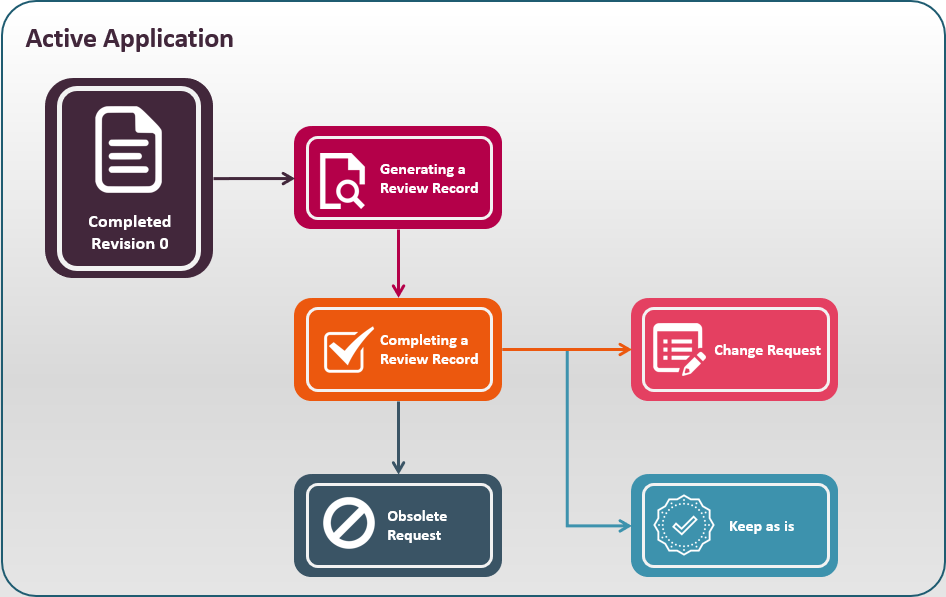
If you have filled in the next review date of the document or set the review frequency, then an automatic reminder email is sent to the assigned person to perform the review. Also, you can perform a review whenever you think it is needed. In both scenarios, you need to create a review record and assign it to the personnel who has the knowledge to review the document.
To Create a Review Record
- Open the completed document you would like to review.
- Click on the Review Record button . This launches a new Review Record form.
- The Review Record form includes a link to the original document being reviewed.
- You can optionally select a specific date for the Next Review Date, or if left blank, it will be automatically filled in when the Review Record is completed based on the Completion Date and predefined Review Frequency.
- In the Review Comments, enter comments concerning the review of the document.
- After completing the fields within the Review Record, you need to route it to the Accepted Review phase.
- In the phase dialog, optionally add the names of those whom you would like to notify with comments about the review, then click OK.
After the Review Record is completed, the following happens:
- The Review Record document will be moved from the Review Record\Open view to the Review Record\Closed view.
- The original approved document will be updated. A link that references the Review Record document will be displayed within the Review Record Link field in the Revision History Tab. This field appears when the Review Record document is approved.
- The Review Date field in the parent approved document will be updated with the value of the Next Review Date field of the Review Record whether it was set or calculated based on the frequency.
- A new log will be added to the Comments section of the approved document indicating that a Review Record has been completed. The log will display the comment that was included in the Review Record form, the name of the user who completed the Review Record, the date and time when the action was performed along with a special icon that distinguishes the log.
Processing a Change Request
|
|
A change request is triggered because of a review record, or simply by an instant need to change.
To Process a Change Request
- Open the Completed document on which you want to process a change request.
- Click on the Process Change Request button.
Change Request form opens.
- Specify the Reason for creating this Change Request in the Reason for Change field. This field is required.
- Optionally, attach any materials related to the change in the Attachments field. You can also specify users in the New Revision Notifications field to be notified of the new revisions of the document included within this change request.
- Select the Assigned To. If left empty, the new revision of the document will be assigned to the approver(s) of the change request.
- Select the Due Date of the change request.
In the Main Document section, the following is automatically filled in:
Document Links: A link to the main document is pasted in this field. The link shows the Document Title, Workflow Type, Document Number, Revision Number, and document Status.
Number: This field displays the revision number of the change requested document upon saving it.
- You can add additional security to the document by filling the Additional Document Security section. Decide who the manager(s) of the document is, who can edit it and who can only read it.
After saving the Change Request document, the Void phase will appear on the phase tracker allowing you to void the change request. Also, you can complete the change request by routing it to the Accepted Change Request phase. At this point, the following changes happen:
- A new copy of the approved document will be generated in the Draft phase and will be assigned to the users selected in the Change Request form. The Created by and Created On fields of the new document will display: the name of the user who created the Change Request, and the date when the change request was accepted.
- The new revision will inherit the data from the prior revision of the document; however, the data can be modified as needed. The revision field will be updated automatically if the workflow revision format is set to Numeric or Alphabetical. If it is set to Manual, then the user will need to add the new revision level.
- A link to the draft new revision is pasted in the original document.
- The assigned users will receive a notification e-mail. The e-mail will include a link to the new document revision where they can apply the needed modifications.
- The users specified in the New Revision Notifications will receive a separate notification e-mail about each of the new revisions generated.
- Any document links to the old revision will automatically open the new revision.
- If training is required on the original document, all related Test Templates will be copied and linked to the new revision. When the new revision of the document reaches the Awaiting Release phase, all the Test Templates linked to the old revision of the document will be automatically obsolete.
- When the document new revision is approved, the previous revision is automatically sent to the Archive application along with all its related activities.
- If the Workflow was configured to duplicated certain Activities, then new copies of the activities will be created and linked to the new revision of the document.
Releasing a New Revision
When completing the review and approval processes of the new revision document, it is sent to the Approved phase and the old revision of the document is automatically moved to the Archive application along with all its related activities (e.g., Change Requests, Action Items...). This type of archiving is called automatic archiving.
Multiple Change Request Feature
Out-of-the-box, Reliance Document Control application includes a Multiple Change Request feature. This feature allows the user to change request many documents using one change request.
To use this feature:
- Open one of the completed documents that you want to change request.
- Create and fill out the change request as previously explained. Change Request form opens.
- Select the Include additional documents with this change request option. The Additional Documents section appears.
- Click the Add Documents button located in Additional Documents section or from the document toolbar. Notice that this action appears on the Change Request only at the Requested phase.
The Include Documents dialog-box appears; it includes the following fields:
Select from related documents: click the keyword icon next to this field to open the Select from related documents dialog. This dialog will display all the related documents that has no processed change request. Select documents to be affected by the change request.
Select from approved documents: click the keyword icon next to this field to open the Select from approved documents dialog. This dialog will display all completed documents that has no processed change request. Select documents to be affected by the change request.
- Use the dialog to specify the documents to be added and click OK.
The Additional Documents section refreshes to display a record for each of the added documents.
Each record includes a link to the additional document, document type (Additional Document or Related Document), and Assigned User.
The Assigned User of each document remains empty until you specify an assignment option in the next section.
To delete a record for any document added within this section click [Delete Record] icon located next to it.
- Assign the additional documents using one of the following assignment options that appear in the Assignment Options for Additional Documents section:
Assign all documents to: This option is selected by default. You will assign the new revisions generated for the additional documents to the users/ Groups you specify in the Select assigned to field found under this option.
Assign each document to its Owner: by selecting this option, you will assign each of the new revisions generated for the additional documents to its owners. When you select this option, the Select assigned to field will disappear and the Assigned To field in the Additional Document section refreshes to display the owner of each document.
Assign each document to its Author: by selecting this option, you will assign each of the new revisions generated for the additional documents to its creator. When you select this option, the Select assigned to field will disappear and the Assigned To fields in the Additional Documents section refreshes to display the creator of each document.
Select assigned for each document: by selecting this option, you will select users or Groups to be assigned for each of the new revisions generated for the additional documents. When you select this option, the form refreshes to display a names field next to each document, through which you can specify the assigned users for each document.
- Select the due date using one of the following Due Date Options.
Due date for all documents option is selected by default. It will display the Due Date field that will be set to all the additional documents.
Select different due date for each document option will display a Due Date field next to each additional document in the Additional Documents section.
|
|
Change Request Log Feature
Out-of-the-box, Reliance Document Control application includes a disabled Change Request Log feature. This feature allows any user with at least author access to the Document Control application to log and submit proposed changes to approved documents.
The platform instantly notifies the document’s owner about submitted change request logs, where they can approve or reject these change logs. They can also keep change logs pending to decide about them later and transfer them to the next revision. When approved change logs become considerable, the document owner can create and proceed with a Change Request.
When a Change Request is created for the document, all approved Change Logs are recorded with the Change Request reason. Pending Change Logs on the other hand are kept until the new revision is released and recorded in the Change Request Log activity of the new approved document revision. Rejected Change Request Logs are ignored in all cases.
The Change Request Log feature is disabled out-of-the-box. You can enable it and use the Change Request Log form to record proposed changes to the document before creating a Change request.
The Change Request Log feature is fully enabled by:
- Enabling the Change Request Log form through its Form Setting.
- Setting the Change Request Log form for a specific Workflow.
- Enabling the Change Request Log – by Number and by Requestor views.
Refer to Reliance Designer user guide to learn about applying the above tasks.
Adding a Change Request Log Item
If you want to add a change request item, you must have at least author access to add your comments and ideas through the Change Request Log activity.
To add a Change Request Log item, apply the following steps:
- Open the approved document for which you want to add a change request item.
- Click on the Process Change Request button. The Change Request Log, related to the selected document, is opened instead of creating a Change Request directly.
The Change Request Log contains an empty Change Request record.
- Within an empty Change Request record, describe the document change you are proposing, then type the Benefit of the Change. Attach any external materials that might justify your proposed change.
- Click Submit.
The Change Request Log is closed. A notification e-mail is sent to the document Owner unless the owner is the one who submitted the Change Request Log item, then they will not be notified.
Applying the Change Request with a Change Request Log
By default, only Managers and the document owner can apply change requests, along with users populated in the Change Request Users field in the Workflow Setting.
To apply the change request items, do the following steps:
- Open the completed document for which you want to add a change request item.
- Click on the Process Change Request button located at the bottom actions bar. The Change Request Log, related to the selected document, is opened.
- Check each item and make sure that all items are approved, rejected, or still pending, and then click Process Request.
- The Change Request Log is closed, and a Change Request is created. The Change Request will inherit the information of the approved change request items.
Obsoleting Invalid Documents
|
|
As a result of the document review, you may decide that a document is invalid or not needed anymore. In this case, you need to obsolete the document by submitting an obsolete request. This archives the obsoleted document, and you can easily restore it when necessary. Using this method is called manual archiving.
To Process an Obsolete Request
- Open the completed document that you would like archived.
- Click the Obsolete Request button located at the bottom of the document.
|
|
A new Obsolete Request document is created.
The status of the new obsolete request is (New), and a link to the parent document is pasted in the Document Links field of the Obsolete Request.
Once you save the Obsolete Request, the status (New) will disappear, and the status of the parent document will change to (Obsoletion Process Initiated).
A link to the Obsolete Request is pasted in the Obsolete Request section within the Revision History tab of the parent document.
- Enter a reason for obsolescing the document and send the Obsolete Request to the Approval phase.
The Obsolete Request will be closed. It will be stored under the Obsolete Request/Open Obsolete Request view.
- Open the Obsolete Request and send it to the Accepted phase. At this point, you can void the Obsolete Request.
The Parent document is moved to the Archive application along with its related Obsolete Request, related activities…
- After completing the obsoletion request, the following happens:
- The document will open at the Obsolete phase in Read-only mode.
- A log will be recorded in the Comments section. The log will indicate that this document is obsolete along with displaying the comment that you entered in the Archive dialog.
- An entry will be added to the Phase Tracking section.
- If training is required on the document, the related training Requirement will be marked as Obsolete in its Requirement Group. If taking a test is required to complete the training, all related Test Templates will be marked as Obsolete.
- The [Restore] button will be available within the bottom action bar only if the username is listed in the Who can restore? field in the Archive phase setting. This button can be used to restore the document back to the live application.
|
|
Restoring Obsolete Documents
|
|
You obsoleted a document and realized that you need it back. Obsolete documents can be restored and sent back to their original (live) application using the restore functionality. This applies only on manually archived documents (Obsoleted). Accordingly, the [Restore] button does not appear on the automatically archived documents (Change Requested).
To Restore an Obsolete Document
- Open the obsolete document that you want to restore from the archive application.
- Click on the Restore button located at the bottom of the document. The Restore Dialog is launched.
- Fill out the Restore Dialog by:
Selecting the user to whom the document will be assigned after being restored. You cannot assign the document to inactive users and groups.
Selecting the Due Date.
Entering a comment indicating the reason for restoring the document. Note that the document cannot be restored without a comment.
- Click OK.
The following happens:
A new copy of the document will be created in the live application and can be located under the pending document’s view.
The restored document will be sent to the Draft phase with a new revision number, and it will inherit the data from the original document. The data can be modified as needed.
If training is required on the original document, all related Test Templates will be copied and linked to the restored document.
A log will be recorded in the Comments section indicating that this document was initiated because of restoring an obsolete document. The log will include the name of the user who restored the document, the date and time when the document was restored, the current phase, and the comment you entered in the Restore dialog.
|
|
|